

Word details
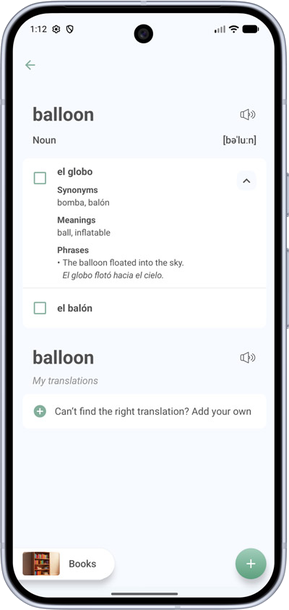
On the Word Details screen, you can choose a translation to learn, manage words already in your folders, and create your own version of a dictionary translation.
To create a translation from scratch, see How to add your own translation of a word or phrase.
Add a translation for learning
- Tap the translation you want to learn (el globo in the screenshot).
- Select or create a topic folder at the bottom of the screen (the Books button in the screenshot).
- Tap +. The word will be added to the selected folder.
For other ways to add vocabulary, see Add your own words and import lists.
Manage words in My words
If a translation has already been added for learning, the My words section appears at the top of the screen.

- To remove the word from learning, tap the trash icon.
- To move it to another category, tap the arrow on the right, then tap the category name under the translation (Family & House in the screenshot) and choose a new category.
Edit a dictionary translation
Dictionary entries cannot be changed directly. When you edit one, My Words saves your changes as your own translation and leaves the dictionary entry unchanged.
- Long-press the dictionary translation (el avance in the screenshot) and select Edit.

- Change the fields you need.
- Select a category and tap +.

- The edited version will appear under My translations.
Edit or delete translations in My translations
- Under My translations, long-press the translation.
- Select Edit, update the fields, and tap Save.
- To delete your translation instead, long-press it and select Delete.
Note: Deleting a translation that has been added for learning also removes the linked word from learning.